Our Courses Are Broken Down Into Small Lessons For Easy Break / Stopping Points
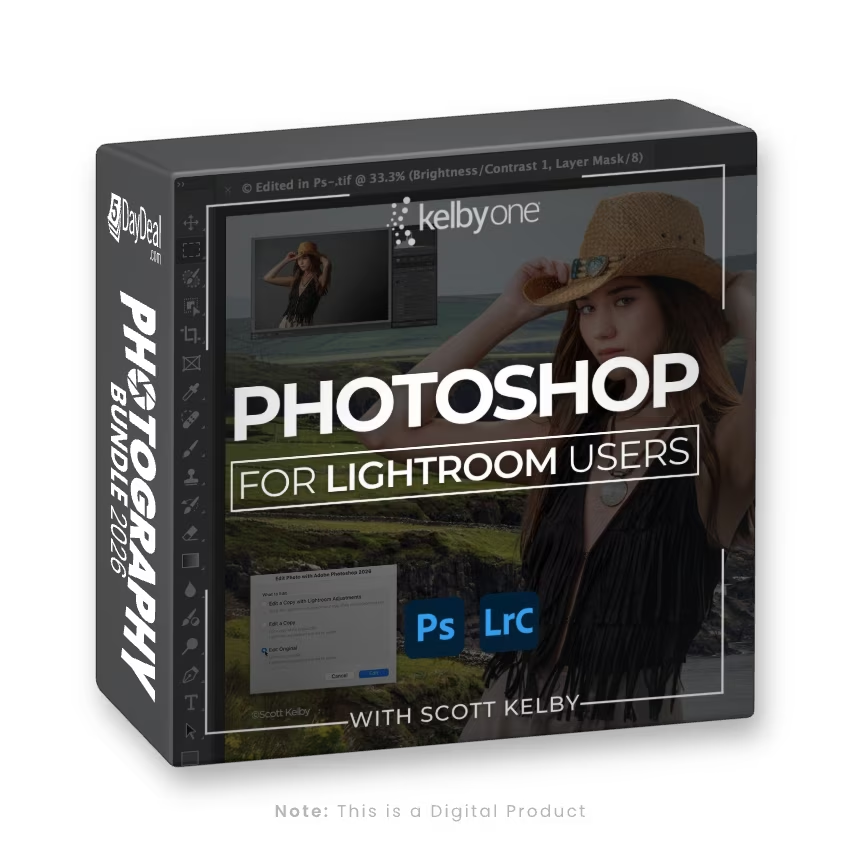
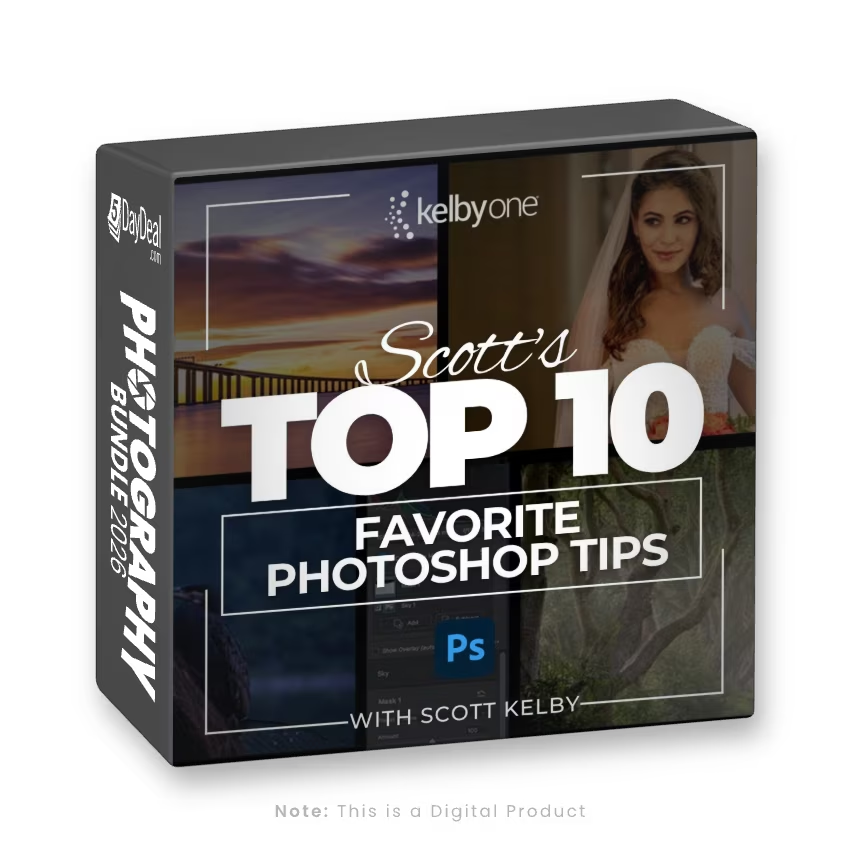
LESSON 1: Why Photoshop Has a Role
3M 2S
Join Scott and Larry as they discuss why Photoshop is still a vital part of a photographer's editing workflow.
LESSON 2: Jumping Back and Forth
12M 13S
Get introduced to the workflow that starts in Lightroom Classic, sends the photo to Photoshop, and then how to bring it back home again.
LESSON 3: Reflections
6M 19S
Here's how to add a reflection to a photo.
LESSON 4: Removing Powerlines
3M 47S
While you could remove powerlines in Lightroom, it is a lot easier to do it better in Photoshop.
LESSON 5: Content Aware Fill
5M 5S
Content Aware Fill is a powerful friend to have in Photoshop when you need it.
LESSON 6: Compositing
7M 39S
Learn how to blend multiple photos together into a realistic looking composite image.
LESSON 7: Fixing Compositional Mistakes
7M 5S
Built into the Crop tool, the Generative Expand functionality allows you to add realistic looking new pixels to your photos.
LESSON 8: Generative Fill
19M 12S
Learn how to use this incredibly powerful tool for removing distractions from your photos in a fast and realistic-looking way.
LESSON 9: Cloning
7M 46S
The Clone Stamp tool has been in Photoshop since the beginning, and earns its place every day.
LESSON 10: Liquify
6M 8S
Liquify is an incredibly powerful retouching tool you'll want to have in your kit.
LESSON 11: Adding Type
4M 26S
For all Lightroom's considerable power, it doesn't have the ability to add type to your photos, but Photoshop does.